Are you struggling with full How to Clear iCloud Storage? Don’t worry—you’re not alone. Many Apple users face the same problem, especially if you store lots of photos, videos, or app data. Luckily, learning how to clear iCloud storage is easier than it sounds. In this guide, we’ll show you simple, step-by-step methods to free up space on your iPhone, iPad, and Mac. By the end, you’ll have a clean, organized iCloud account without losing important files.
Why Clearing iCloud Storage Matters
iCloud storage can fill up quickly. Photos, backups, and app data eat up space. When your storage is full, your device may not back up properly, apps might crash, and syncing across devices slows down. Knowing how to clear iCloud storage on iPhone, iPad, and Mac ensures your devices stay smooth and your data safe. Plus, freeing space avoids buying extra storage plans unnecessarily.
Check Your Current iCloud Storage
Before cleaning, check how much storage you’re using. On iPhone or iPad, go to Settings → [your name] → iCloud → Manage Storage. On Mac, open System Settings → Apple ID → iCloud → Manage. This helps you identify which apps or backups take the most space. Tracking usage is the first step in learning how to clear iCloud storage on Mac or mobile devices effectively.
How to Clear iCloud Storage on iPhone
- Open Settings → [your name] → iCloud → Manage Storage.
- Tap on apps or backups using most space.
- Delete unnecessary backups, old messages, or large files.
- Consider turning off iCloud for apps you rarely use.
Using this method, you can quickly free several gigabytes without losing important data. Many users notice immediate improvement in device speed after clearing iCloud storage on iPhone.
How to Clear iCloud Storage on iPad
Clearing iCloud storage on iPad is very similar to iPhone. Navigate to Settings → [your name] → iCloud → Manage Storage. Delete old backups, large attachments, or app data you no longer need. A bonus tip: syncing your photos to your computer or external drive before deleting them can save space safely. Following these steps ensures your iPad stays fast and responsive.
iCloud Storage Management Steps
Follow these steps to clear and optimize your iCloud storage efficiently.
| Step | Action | Device | Image |
|---|---|---|---|
| 1 | Check your current iCloud storage usage via settings. | iPhone / iPad / Mac | 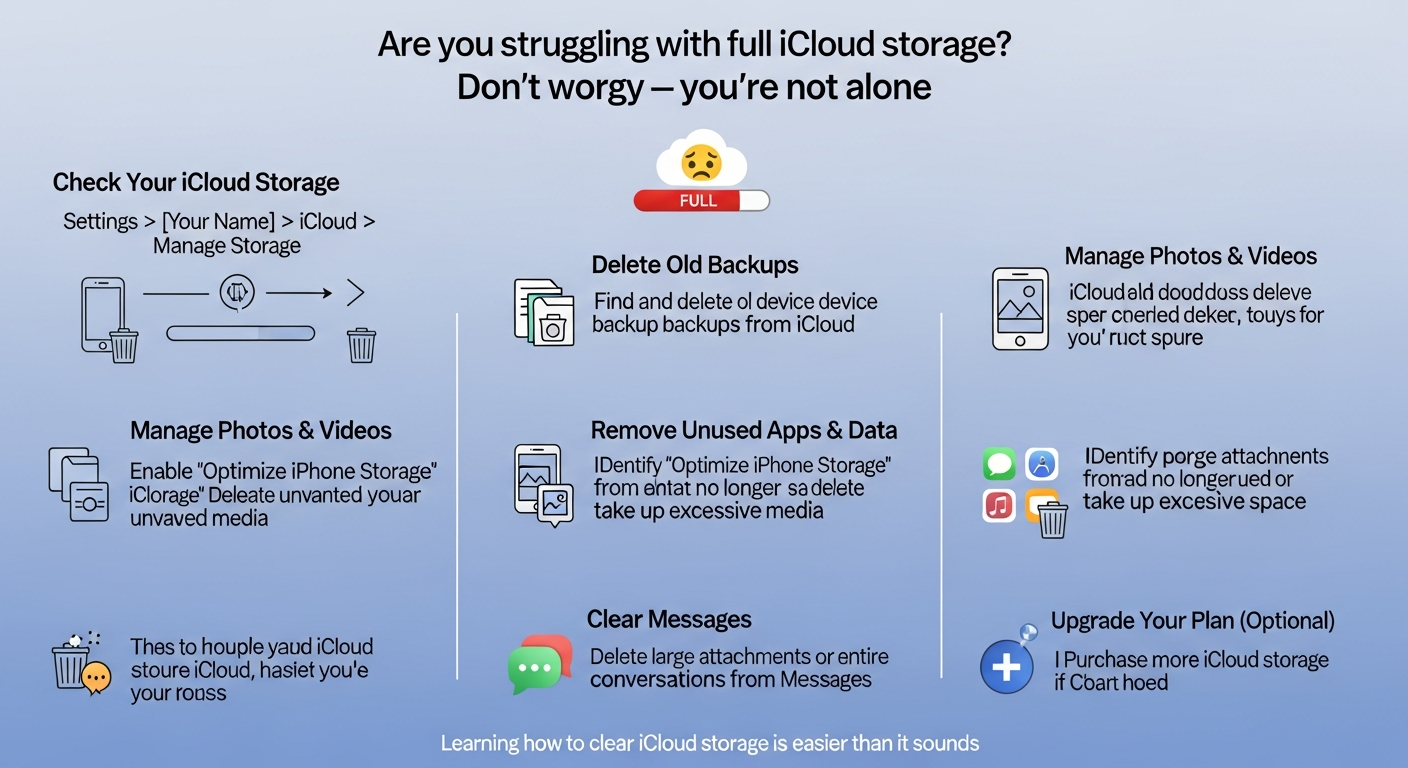 |
| 2 | Delete old device backups to free up space. | iPhone / iPad | |
| 3 | Remove unnecessary photos and videos or move them to an external drive. | iPhone / iPad / Mac | |
| 4 | Manage iCloud Drive files by deleting duplicates or old documents. | Mac / iPad | |
| 5 | Limit app data usage by disabling iCloud sync for rarely used apps. | iPhone / iPad | |
| 6 | Enable iCloud optimization: Optimize Storage for photos and files. | iPhone / iPad / Mac | |
| 7 | Regularly monitor storage and repeat steps as needed. | All Devices | |
How to Clear iCloud Storage on Mac
On a Mac, managing iCloud storage is just as simple:
- Click Apple menu → System Settings → Apple ID → iCloud → Manage.
- Review backups, documents, and app data.
- Delete unnecessary items or move files to external storage.
- Optimize storage by enabling “Optimize Mac Storage” for photos and files.
This method keeps your Mac’s iCloud clean while ensuring essential files remain accessible.
Delete Old iCloud Backups
Backups often occupy the most space. Many people forget old iPhone or iPad backups still exist in iCloud. To remove them:
- Go to Manage Storage on your device.
- Tap the old device backups.
- Select Delete Backup.
Doing this regularly can free a significant amount of storage, making your iCloud account healthier and faster.
Remove Unnecessary Photos and Videos
Photos and videos take up huge storage. Use these tips:
- Delete duplicates or blurry shots.
- Move important media to a computer or external drive.
- Enable iCloud Photos → Optimize iPhone Storage to save space automatically.
Even small changes in photo management can drastically improve available iCloud space.
Manage iCloud Drive Files
Documents stored in iCloud Drive can accumulate unnoticed. Check your files and delete anything outdated. Consider organizing your files into folders and removing duplicates. For large files you rarely access, moving them to an external drive can free up significant space.
Limit App Data Usage
Apps like WhatsApp, Notes, or Messenger save a lot to iCloud. Reduce storage by:
- Deleting large chat backups.
- Turning off iCloud sync for rarely used apps.
- Regularly reviewing apps under iCloud → Manage Storage.
This is a simple but often overlooked way to maintain healthy iCloud storage.
Enable iCloud Optimization
Apple offers built-in optimization for storage:
- Photos → Optimize Storage
- Mac → Optimize Mac Storage
- iPhone/iPad → Offload Unused Apps
These tools automatically manage files and save space, reducing the need to manually delete items constantly.
FAQs About Clearing iCloud Storage
1. Can I clear iCloud storage without deleting important files?
Yes! Focus on old backups, large attachments, and unused app data. Always back up important files first.
2. How often should I clear iCloud storage?
Every few months, or when you get storage warnings. Regular maintenance keeps your account smooth.
3. Can deleting iCloud backups affect my devices?
Only if the backup is your primary backup. Keep at least one recent backup for safety.
4. Is it safe to turn off iCloud for apps?
Yes, but some data may stop syncing across devices. Review app data before disabling.
5. Can I recover deleted iCloud files?
iCloud allows recovery for 30 days from the Recently Deleted folder. Act fast if needed.
6. Will clearing iCloud improve device speed?
Yes. Freeing space can improve backup speed, app performance, and overall device responsiveness.
Conclusion: Keep iCloud Storage Under Control
Learning how to clear iCloud storage is essential for every Apple user. Regularly reviewing backups, photos, and app data keeps your devices fast and storage optimized. Start by deleting unnecessary files, enabling optimization, and reviewing app data. With these tips, you can enjoy smooth iPhone, iPad, and Mac performance without paying for extra storage unnecessarily. Take action today and reclaim your iCloud space!